How to Choose the Right VPS Size for Your Website


%203.png&w=256&q=75)
Why VPS Size Matters More Than You Think
Underspeccing a VPS means slow page loads, crashes under traffic spikes, and PHP processes getting OOM-killed mid-request. Overspeccing means wasting $30–60/month on unused RAM and CPU. The goal is matching resources to actual workload — and that requires understanding what each spec actually controls.
Most beginners focus only on storage. Storage is the least likely bottleneck on modern NVMe-backed VPS plans. RAM and CPU are what actually determine how many concurrent users your server can handle.
Reading the Specs: RAM, CPU, Storage, and Bandwidth
RAM is the most important resource for web hosting. Each PHP-FPM worker uses 30–80 MB of RAM. MySQL needs a minimum of 200–400 MB. Nginx itself uses very little. For a WordPress site: 1 GB RAM can handle 2–4 concurrent PHP workers plus MySQL. 2 GB handles 8–12 workers. 4 GB handles 20+ workers comfortably.
CPU affects dynamic request processing. A 1 vCPU server handles burst traffic fine; under sustained load (think WooCommerce checkout flows), 2 vCPUs prevent PHP-FPM queue buildup.
SSD/NVMe storage speed matters for database I/O. Most modern VPS providers use NVMe — confirm this before buying. Storage size matters only if you host large media libraries; 25–50 GB covers most sites.
Bandwidth: 1 TB/month is enough for sites under 100K monthly pageviews. Some providers (Hetzner) offer 10–20 TB on entry-level plans.
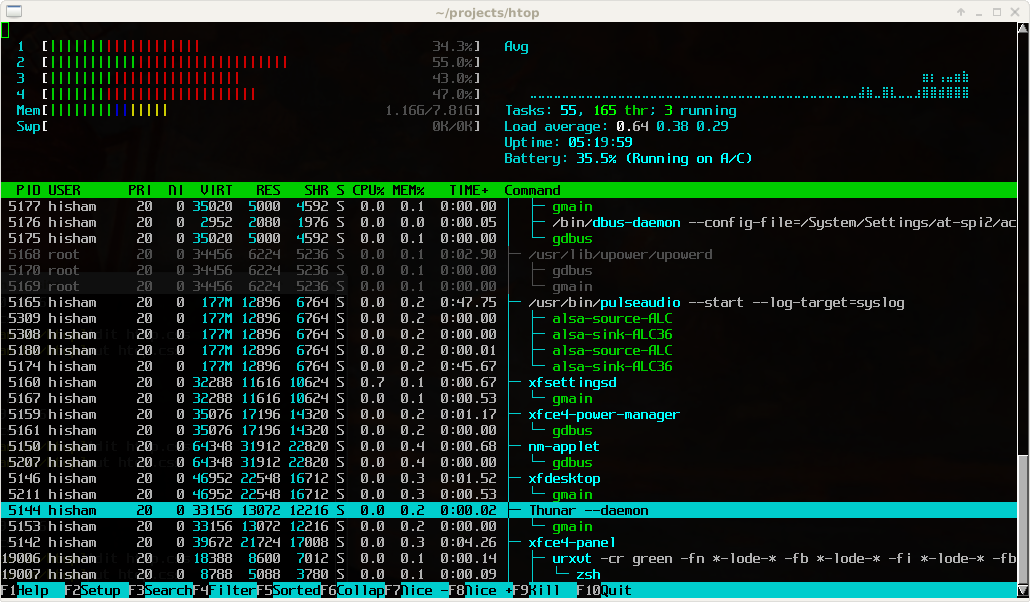
Run htop on a live server to see your actual memory usage pattern. If MySQL is consuming 60% of your RAM, you need more memory — not more CPU. CloudStick's resource monitoring panel shows real-time CPU, RAM, and disk I/O graphs so you can identify the real bottleneck.
Matching Workload to Resources
A rough guide based on real-world WordPress performance data:
1 vCPU / 1 GB RAM / 25 GB SSD — personal blog, staging server, low-traffic site (under 5,000 monthly visits). $4–6/month on Vultr, Hetzner.
2 vCPU / 2 GB RAM / 50 GB SSD — small business site, portfolio, lightweight WooCommerce (5,000–50,000 visits/month). $12–15/month.
2 vCPU / 4 GB RAM / 80 GB SSD — active WooCommerce store, membership site, multi-site WordPress (50K–200K visits/month). $20–24/month.
4 vCPU / 8 GB RAM / 160 GB SSD — high-traffic blog, large WooCommerce, Laravel app with jobs. $40–50/month.
Right-Sizing for WordPress and WooCommerce
WordPress is memory-hungry by default because of the plugin ecosystem. A clean WordPress install uses around 40 MB per PHP-FPM worker. Add 10 active plugins and that doubles. Add WooCommerce with a theme builder and you are at 120–200 MB per worker.
The safe minimum for a WooCommerce store is 2 GB RAM, with php.ini memory_limit set to 256M. For stores with more than 1,000 products and active promotion traffic, 4 GB RAM prevents checkout abandonment from slow server responses.
Knowing When to Scale Up
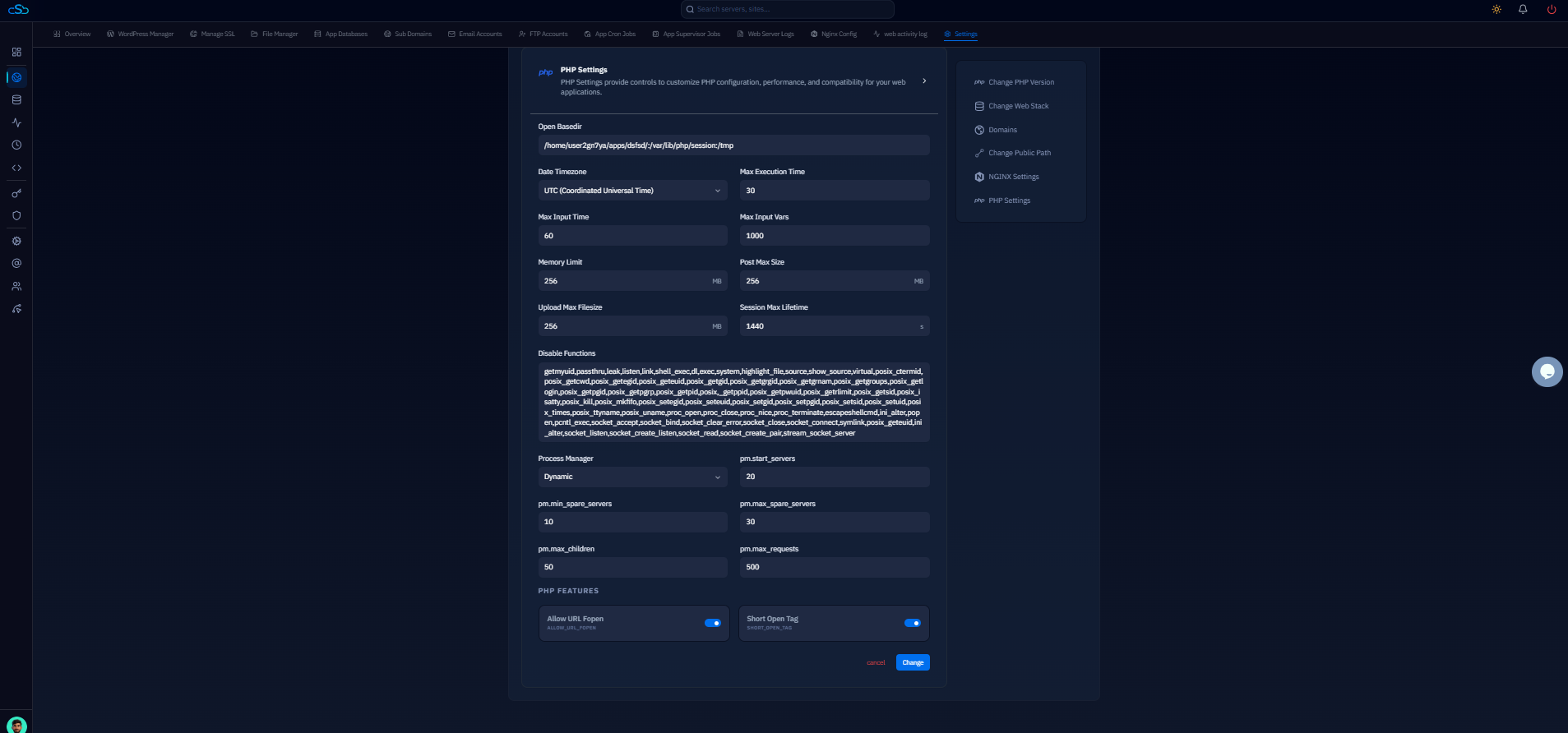
The signals that tell you to upgrade: consistent RAM usage above 80% for more than a day, PHP-FPM max_children reached in logs (/var/log/php8.3-fpm.log), average server load above your vCPU count, or page load times increasing without a traffic spike.
Do not wait for a crash to scale. Vertical scaling (upgrading the same server) is the fastest fix — most providers let you resize with a reboot in under 5 minutes.
Before scaling up, rule out application-layer issues first. Excessive plugin overhead, unoptimized database queries, or missing object caching can make a 1 GB server feel like it needs 4 GB. Fix the code before buying more hardware.
CloudStick's Real-Time Monitoring Dashboard
CloudStick displays CPU usage, memory consumption, and disk I/O for every connected server in the Server Stats section of the server panel. The dashboard polls metrics in real time, so you can watch resource usage spike during a deployment or a traffic event without SSHing into the machine.
When you decide to upgrade, CloudStick's Server IP Management feature handles the IP transition cleanly after you resize your VPS with your cloud provider.