How to Connect to Your VPS for the First Time (SSH Basics)


%203.png&w=256&q=75)
What SSH Is and Why It Replaced Telnet
SSH (Secure Shell) is an encrypted network protocol for logging into remote machines and executing commands. It replaced Telnet in the late 1990s because Telnet transmitted everything — including passwords — in plain text, readable by anyone on the network. SSH encrypts the entire session using public-key cryptography.
When you connect to a VPS via SSH, two things authenticate you: optionally a password (insecure) or a key pair (the standard). The key pair consists of a private key on your local machine that never leaves it, and a public key placed on the server. The server challenges your client with something only the private key can answer.
You need your server's IP address and either the root password (to start) or an SSH key already installed. Cloud providers usually show the IP in their dashboard immediately after provisioning. For Ubuntu 24.04, the default user is ubuntu on AWS/Lightsail or root on DigitalOcean/Vultr/Hetzner.
Generating Your SSH Key Pair
ED25519 is the modern algorithm — smaller keys, faster math, resistant to current known attacks. RSA 4096 is still acceptable but creates larger keys. Avoid RSA 2048 and DSA entirely on any new setup.
The output of cat looks like: ssh-ed25519 AAAA... your-server-label. Copy that entire string — this is the public key you will place on your server.
Connecting from macOS and Linux
Both macOS and Linux ship with the OpenSSH client pre-installed. Open Terminal and use the commands below. The first login uses a password so you can copy your key to the server — after that, key-based auth takes over and the password prompt disappears.
To save typing on repeat connections, add a named entry to ~/.ssh/config:
Then connect with simply: ssh myserver
Connecting from Windows
Windows 10 and Windows 11 ship with OpenSSH built-in. Open PowerShell or Command Prompt and use the same commands you would on Linux:
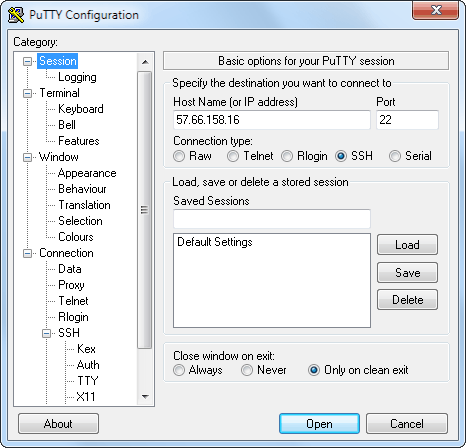
If you prefer a GUI, PuTTY + PuTTYgen is the traditional Windows SSH client. Generate a PuTTY-format key with PuTTYgen, export the public key, and paste it into the server's authorized_keys. PuTTY sessions can be saved and reused across reboots.
Hardening SSH Immediately After First Login
The default SSH configuration is functional but not production-hardened. Attackers scan the internet continuously for servers with password authentication enabled — the time between provisioning and first brute-force attempt is often under a minute. Apply these settings in /etc/ssh/sshd_config:
If you change the SSH port (not always recommended), update your UFW rule first: sudo ufw allow NEW_PORT/tcp && sudo ufw delete allow OpenSSH — then edit the sshd_config Port line. Test from a second terminal BEFORE closing your current session.
Managing SSH Keys in CloudStick
CloudStick includes an SSH Vault — a secure credential manager inside the dashboard. Add your server's root SSH key through the dashboard's SSH Key Management section, and CloudStick stores it encrypted. Team members you invite can be granted SSH access to specific servers without you emailing private keys around.
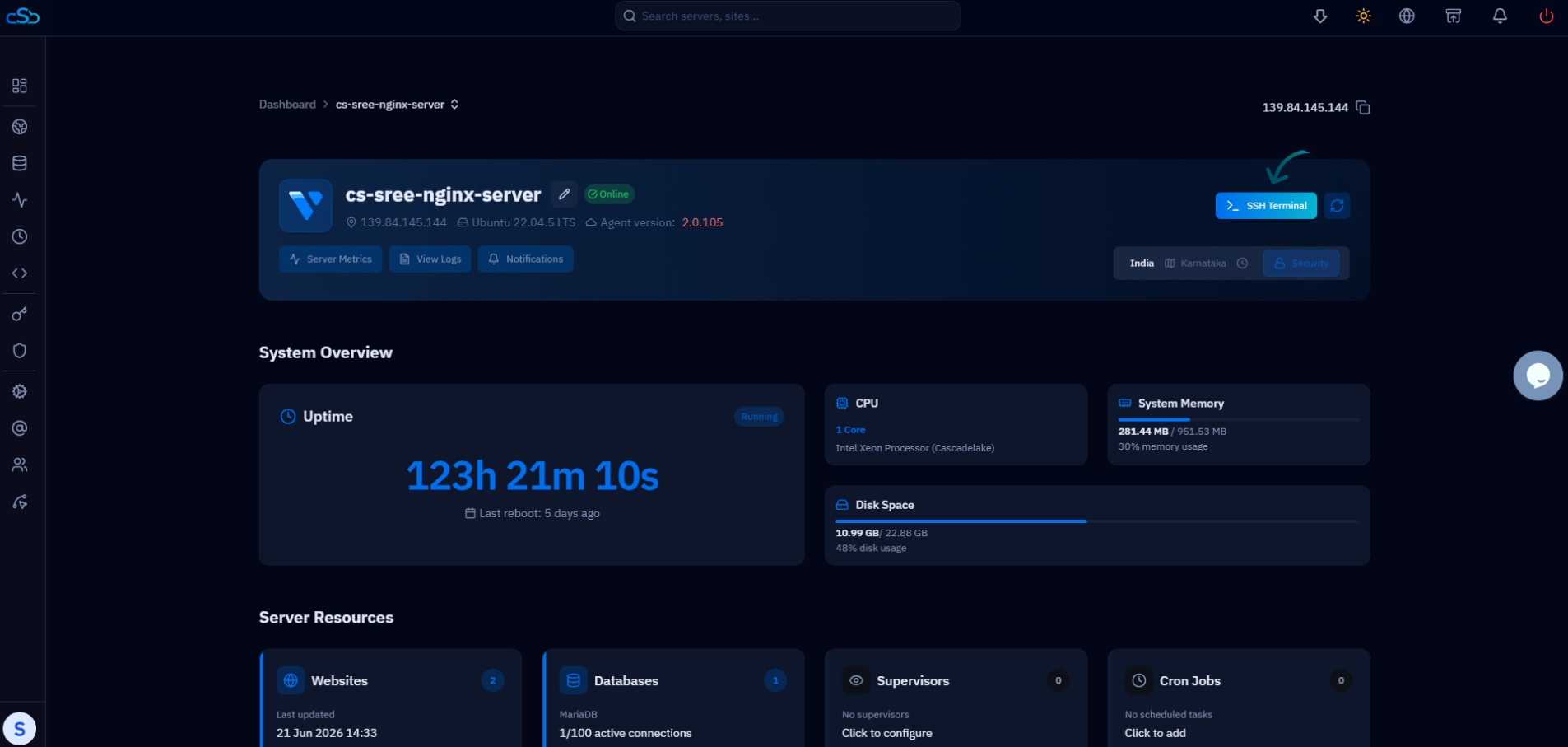
CloudStick also provides a browser-based SSH terminal (SSH Terminal via Dashboard feature) so you can connect to any managed server from any browser without a local SSH client installed — useful for emergency access from a machine without your keys loaded.